WHAT IS YOUR FREE WEBCAM SYSTEM ABOUT
The camchoice free live webcam system enables you to chat and interact with people from all over the world trough a website. Everyone can join and participate in our chatrooms, no signups or memberships are required. You can broadcast your own webcam for others to see, but you can also chat with other people if you dont have a webcamera. Our webcam chat software is written in flash, using a flash communication server, and you dont need to install any web cam software to enjoy all free features of our video chat system. As a participant of our FREE video chat system we allow access to all chat rooms and you can watch upto 4 different video streams from other users simultaniously. We even give you the option to create your own chatrooms, in which you can invite your friends. Chatrooms can be password protected by yourself, making them your own private chatrooms. Before using our webcamchat please read the terms and conditions and obey by these rules.
HOW TO USE THE VIDEO CHAT SYSTEM
To access the videochat rooms you only need to create a nickname, you dont need to go through a complicated membership signup. To login to our free live chat system go HERE to login. You will find a login box in which you need to enter a chatname and the role you want to play (female , male , couple), then press the login button. Please do not lie about the role you want to play, this will only get you banned from the chatrooms. Here is an example of the login screen :
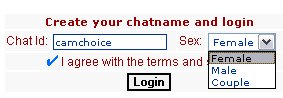 |
"you dont need to go through a complicated signup process to enjoy our free video chat system! The only thing you need to do is create a chatname, choose a sex and press the login button" Click here to go to the login page |
After login the system will ask you some questions. These questions are necessary to detect your webcamera and audio equipment that is connected to your computer. It is simply asking if it is allowed to connect or not. We are NOT installing any spy or other malicious software on your computer ! Here are some of the questions raised when connecting :
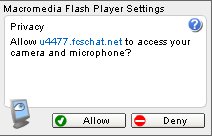 |
"Our system will ask a privacy question, which is very comon for Macro flash player. If you have a web camera and / or a microphone connected to your computer answer this question with "allow" answer this question with "deny" if you do not want to broadcast or if you dont have a camera or microphone connected. If you dont trust this question, you can read more specific information about it on the macromedia website Read the tutorial here " |
Whatever button you hit below will take you to our free live chat rooms . If you have a webcamera connected to your computer and you answered the previous question to "allow" you will see your web cam image on the left top of the chat appication. If you answered with "deny" your streaming webcam is not shown, you will need to logout and redo previous procedure with "allow"
After you logged in to our system you will be taken to the lobby. This is the general chatroom in which people are taken to when they login or just choose to hangout here. If you want to go to other chatrooms, choose them from the list of chatrooms on the right site of the application. On the left side of the chatrooms there is another collum in which you can see the users that are active in the chatroom that you choose. Click on any of the names in this list to see their webcams. Only persons with a webcam icon next to their name have a webcam connected for you to see. Here is an explenation on the icons next to the chatnames :
 |
This person has a webcam connected to his computer and is streaming its webcam feed. |
 |
This person has a webcam connected to his computer, but denied access to is. |
 |
This user is also using his microphone to stream audio via our server. |
 |
This icon indicates that this person is female |
 |
This icon indicates that this person is male |
 |
This icon indicates that a couple is online |
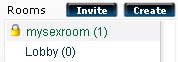
Camchoice also allows you to create your own public and private chatrooms. The difference is that you can password protect the private chatrooms, and only people that know this password can access this chatroom. This way you can have your own private conversations which you dont want others to share. Press the "create" button to create a new public or private chat room.
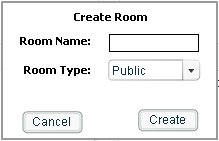 |
" Click on the create button above the chatroom collumn to create your own public and private chatrooms. You can choose to create a public or private chatroom. Private chatrooms are password protected and can only be accessed by people that have the password " |
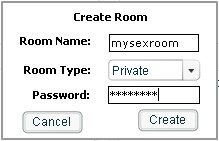 |
" When choosing to create your own private chatroom you will be asked to enter a password. You can pass this password to friends to join you in this chatroom. Only persons that have this password can access " |
|
" After the private chatroom has been created your own nickname will be in this chat room. On top of the rooms collumn you will find a new button "Invite" |
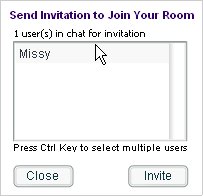 |
"When pressing the Invite button a new window will open and you can select users that are currently chatting on camchoice. Select one or more users from this list and they will be sent an invitation with your password. This invitation will be displayed in the chatbox as a private message " |
One more last thing to say. If your webcam broadcasting is not working then please check that you are not using your webcam on any other application. A normal windows system can only handle 1 video stream. Install any kind of webcam splitting software to broadcast more then 1 stream. Such software can be found in the camchoice webcam directory under webcam software. But in general you would not need any such software, just close other aplications that use your webcam like Yahoo.
This also brings me to some advanced settings that will allow you to change the webcam and audio connected and more. Make a right click on your "OWN" webcam image in the application and choose "settings"
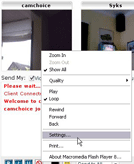 |
"When you make a right click on your OWN webcam image, a drop down list is displayed, a couple of options are shown. Choose settings from this list. I will not go into any other details of this list, as they are not mandatory to use our system " |
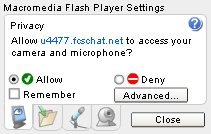 |
"After choosing "settings" a new small window is opened. Again you will see the allow and deny option which we saw before. You dont need to make any changes in this window " |
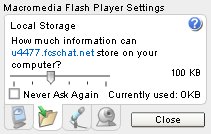 |
" When clicking on the folder tab you will see the local storage which macro media uses to store some temporary data on your computer. You dont need to change anything here " |
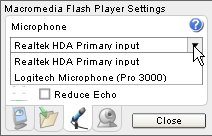 |
" When clicking on the microphone tab you can choose the microphone you want to use, change the volume or reduce echo. So if you are having a problem with sound, make sure that the correct microphone is selected " |
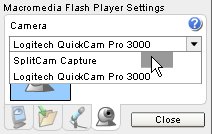 |
" When you click on the webcam tab you can select the webcam you want to use. It can be that you have more then one webcamera connected. This option allows you to change to a different one. If you are using webcam splitting sotware and you have it running, please select the software like in the example "Splitcam software" |
The rest of the options in the chat application are pretty self explaining, you can send smilies to other users, change the color of your text chat, send private messages to users or to all etc etc.
I suppose I have covered about 99% of all options. If you still have questions, or problems then please post them in our forum. You can find all topics related to our videochat in our live video chat forum. Enjoy our free live chat system and dont forget to visit our sponsers who are making all of this possible.
|